
MAC VIDEO PLAYOUT GUIDE
Play video and still-image cuesto an external display.
Prepare and play visual cues from a Mac to a projector, display, or video switcher for theatre, live events, ceremonies, exhibitions, and streams. This guide covers media preparation, the next cue, show-section changes, end behavior, and pre-show verification.
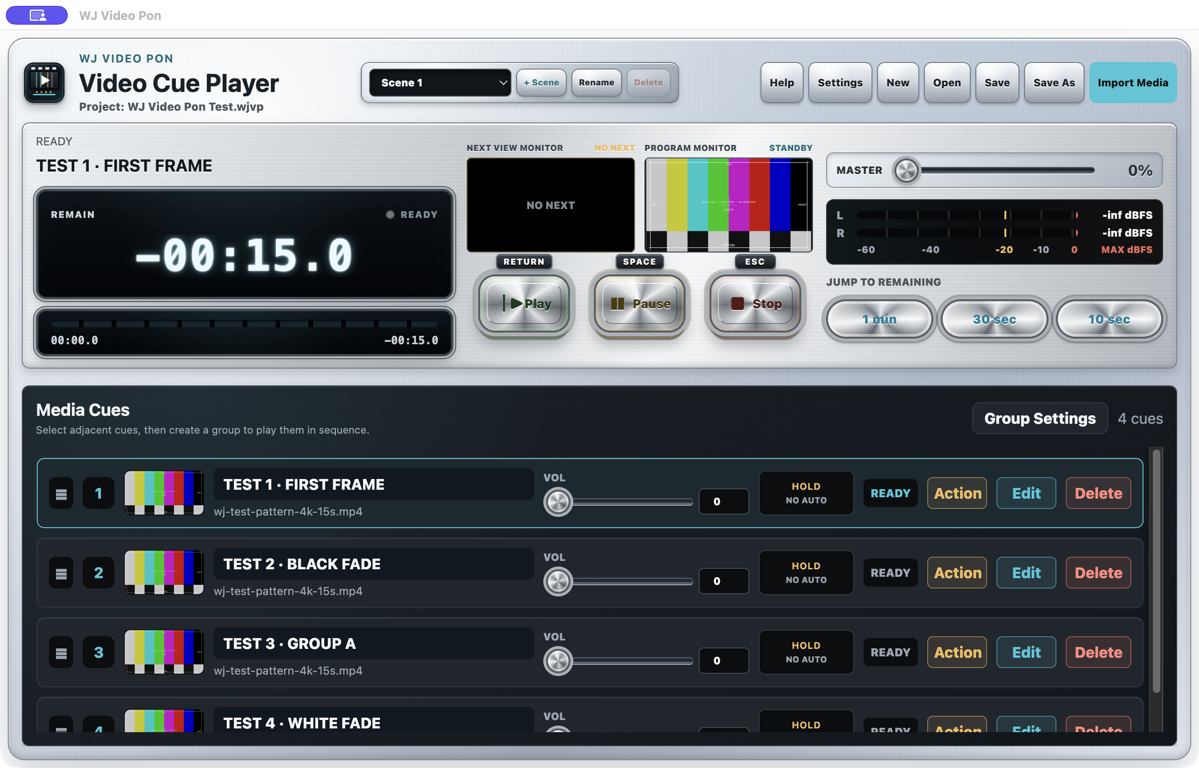
A CUE-BASED VIDEO WORKFLOW
Separate the control interface from the audience output.
Video playout keeps cue controls and status on the Mac while sending only the intended visual to the external display. Production operation also needs a known next cue, transition behavior, and a planned state after each item ends.
Video cues
Play openers, explainers, commercials, and production visuals in response to the show call.
Still-image cues
Keep logos, holding slides, titles, and information graphics in the same running order.
PROGRAM and NEXT
Distinguish the live output from the prepared cue to reduce accidental playback.
Show-section lists
Use Scene Memory for the standby cues belonging to each act, session, or segment.
STEP-BY-STEP WORKFLOW
From display connection to show operation.
Rehearse with the production Mac, adapter, cable, display path, audio path, and media files.
Connect the external display in extended mode
Connect the projector, display, or video switcher, then confirm that macOS is extending the desktop instead of mirroring it.
Select the output and verify a clean feed
Choose the audience-facing screen in WJ Video Pon. Make sure the control interface and Mac desktop are not visible on the destination.
Add the actual video and still files in running order
Use production media, not only test clips. Check aspect ratio, resolution, audio presence, start, and end for each cue.
Set the Action behavior for each cue
Choose CUT or crossfade behavior, LOOP, AUTO, SELECT NEXT, and audio behavior to match the running order. Confirm what appears after the media ends and which cue remains in NEXT.
Rehearse with PROGRAM and NEXT
Change Scene Memory while following the real sequence and show calls. Verify that a new standby list can be prepared without interrupting the current PROGRAM output.
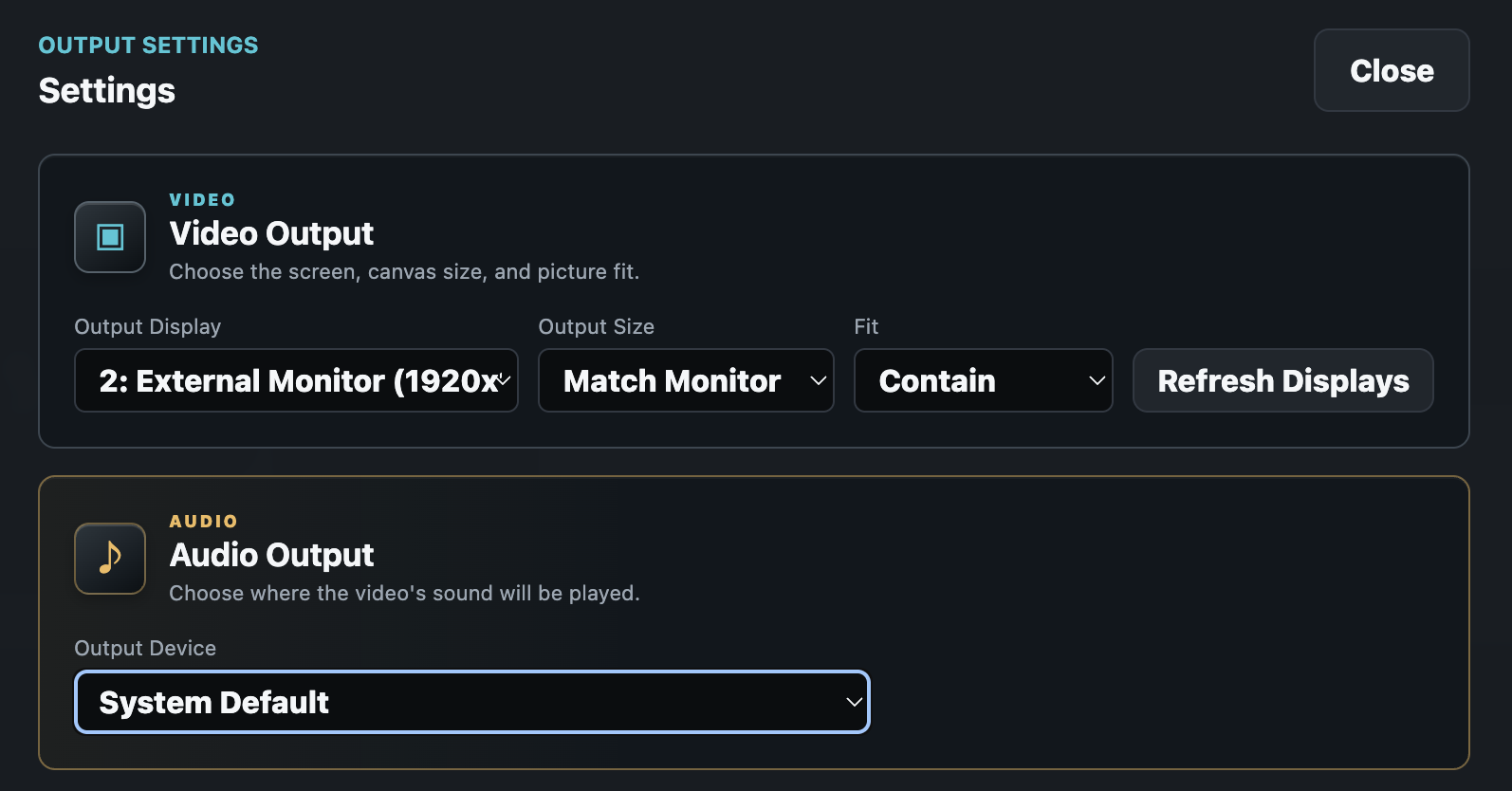
CLEAN EXTERNAL OUTPUT
Visuals for the audience, controls for the operator.
With an external display selected, the operator can monitor NEXT on the left, PROGRAM on the right, and remaining time on the Mac while the audience receives a full-screen visual output. The actual external picture and audio continue while the control window is moving.
- Reconfirm the display number after reconnecting hardware
- Use extended desktop mode instead of mirroring
- Test through the production adapter and video switcher
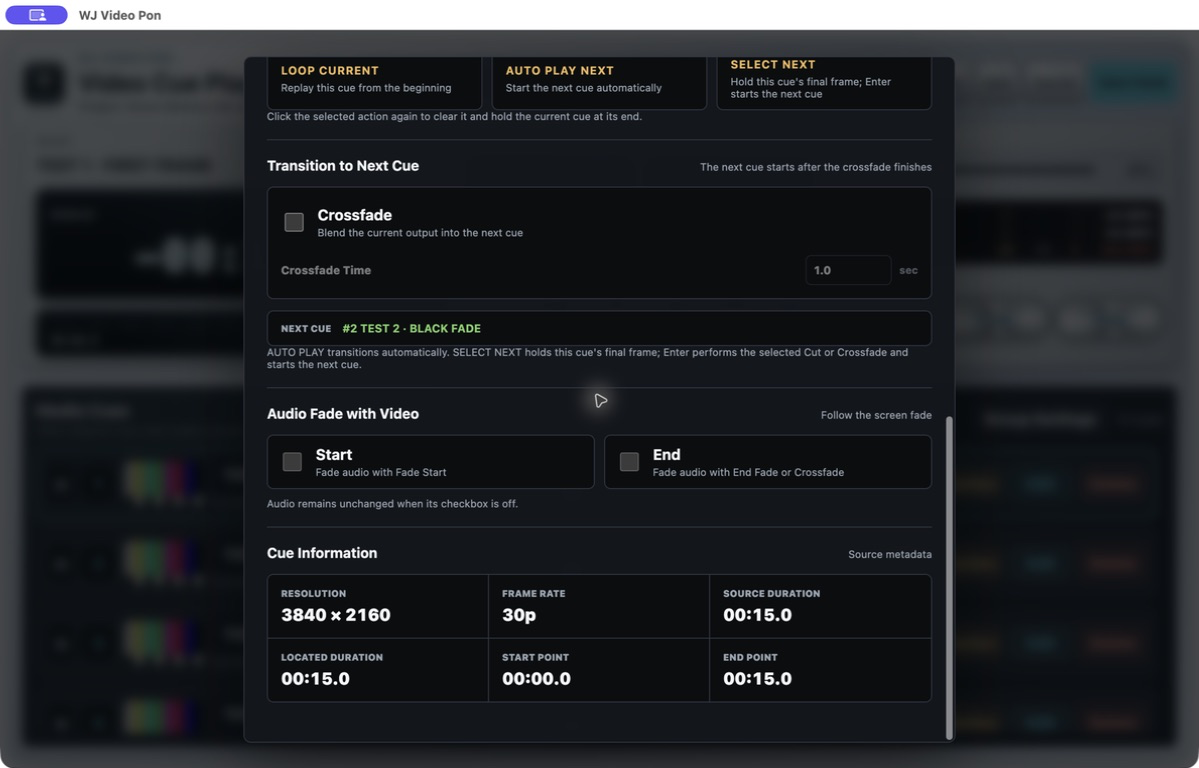
ACTION + SCENE MEMORY
Prepare the state after every cue.
Action settings control visual transitions, crossfades, audio, and the cue selected after playback. Changing Scene Memory keeps the current PROGRAM running, so the operator can prepare the next section without interrupting the live output.
- Manage video and still images in one cue list
- Test LOOP and AUTO across multiple boundaries
- Keep the live PROGRAM distinct from the standby NEXT cue
PRE-SHOW CHECKLIST
Verify the complete signal path.
A reliable rehearsal covers the transition, end state, and recovery—not only whether a file opens.
- The production Mac, power, adapter, cable, projector, display, or video switcher are connected
- macOS uses extended desktop mode and the audience cannot see the desktop or controls
- WJ Video Pon is assigned to the intended external display
- Every production video and still has been checked for aspect ratio, framing, and resolution
- Video audio reaches the correct destination at the intended show level
- LOOP runs through several boundaries, and still durations, AUTO, and SELECT NEXT behave as planned
- CUT, crossfade, stop, end-screen, and next-cue states have been rehearsed
- Scene Memory changes leave PROGRAM uninterrupted and prepare the correct standby list
- Notifications, sleep behavior, cable loss, backup media, and fallback playout are covered
RELATED GUIDES
Continue with the relevant workflow.
3-MONTH FREE TRIAL
Test with the production display path and media.
Verify clean output, PROGRAM/NEXT, Action behavior, loops, and audio routing before purchasing.