WJ VIDEO PON / VERSION 1.2.10

Video playout for live production.

WJ Video Pon plays 4K video, photos, and still images on cue for theatre, live events, ceremonies, exhibitions, and streaming. Scene Memory stores a named cue list for each show section and switches the standby list without stopping the current PROGRAM output.

ACTUAL SCREENS & FEATURES

Actual screens, with the key controls explained.

Screens are shown at a balanced size and grouped by feature for quick scanning.

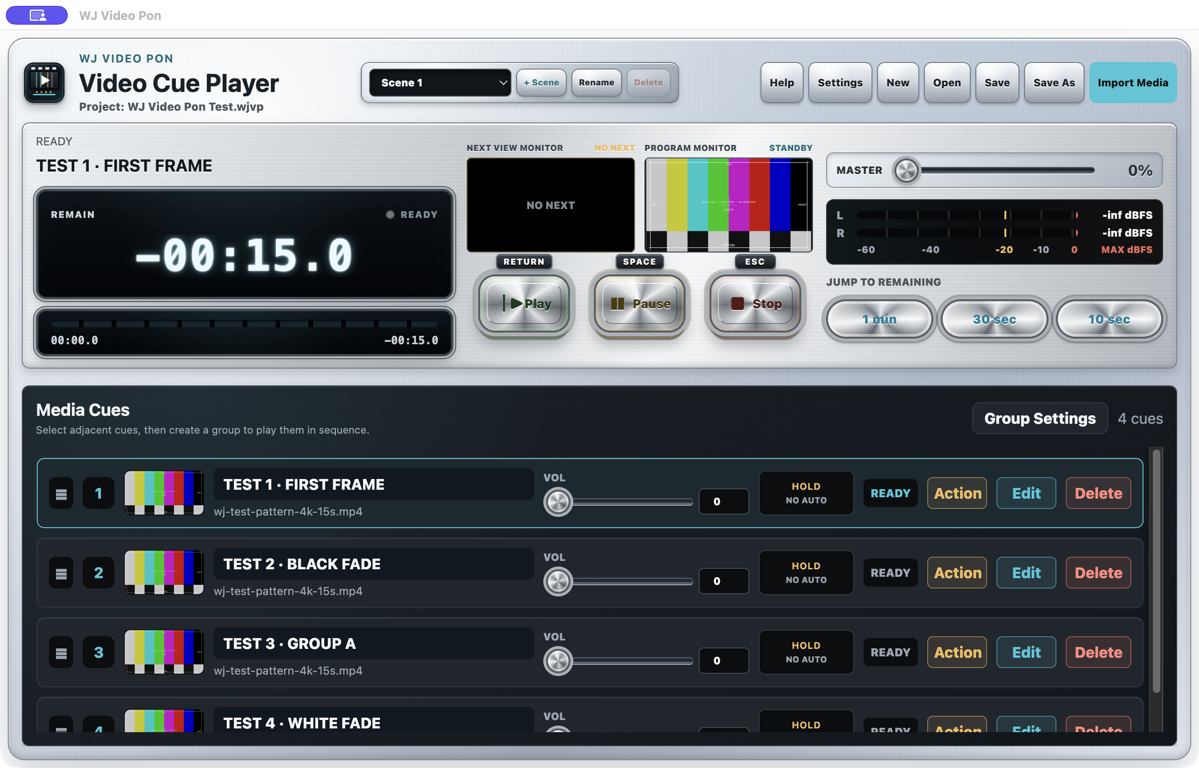
WJ Video Pon 1.2.10 showing named Scene Memory lists, NEXT on the left, and PROGRAM on the right

KEY CONTROLS

Scene Memory for each show section

  • Named scenesStore separate video and still-image cue lists for the first half, second half, acts, or other sections.
  • Add, rename, and deleteCreate a blank scene and give each list an operator-friendly name from the Scene Memory bar.
  • PROGRAM continuesSwitching scenes during playback changes only the standby cue list; the live picture continues uninterrupted.

Older projects open as “Scene 1,” preserving their existing cues.

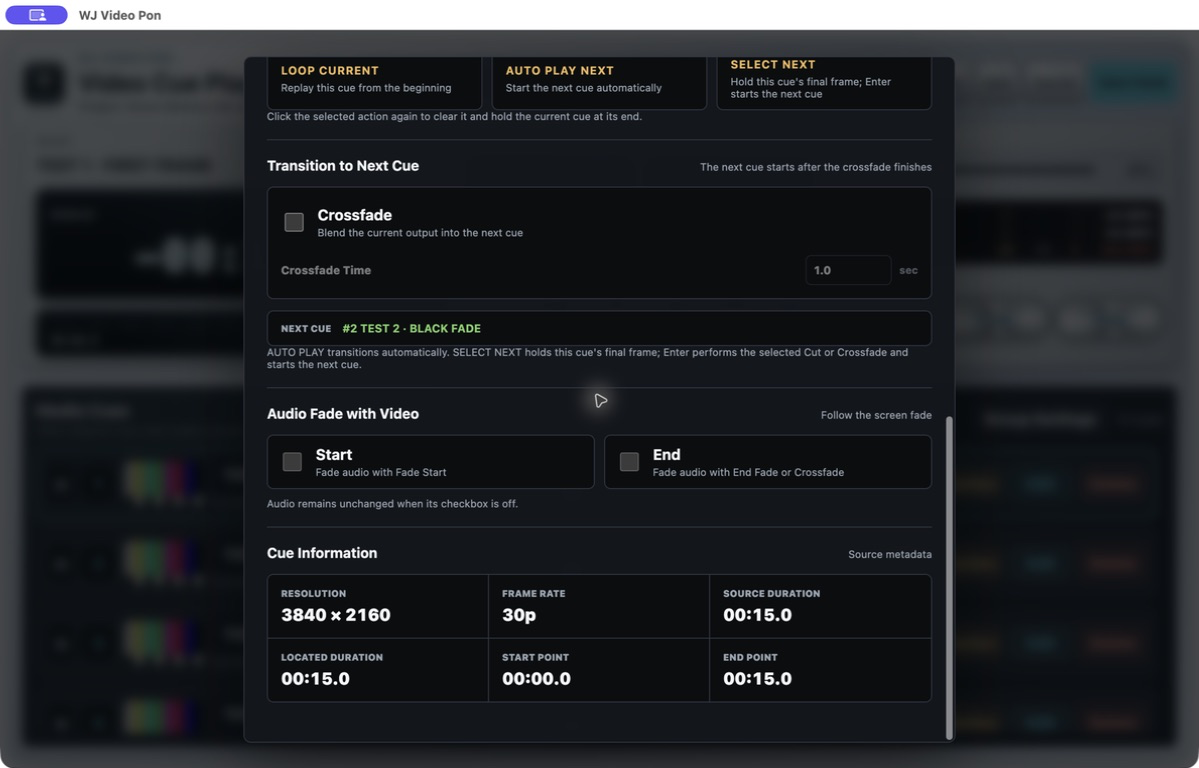
Example WJ Video Pon Action settings for SELECT NEXT, CUT, Crossfade, and audio

KEY CONTROLS

Set the start, end, and what happens next

  • Start and endChoose the first frame, black, or white, plus the start and end fades.
  • After playbackSelect Stop, LOOP CURRENT, AUTO PLAY NEXT, or SELECT NEXT for each video cue.
  • Cut and timed crossfadeSet the next-cue CUT or Crossfade and choose whether audio fades with the picture.

The A/B dual-engine display surfaces prepare the next cue while SELECT NEXT preserves the current final frame.

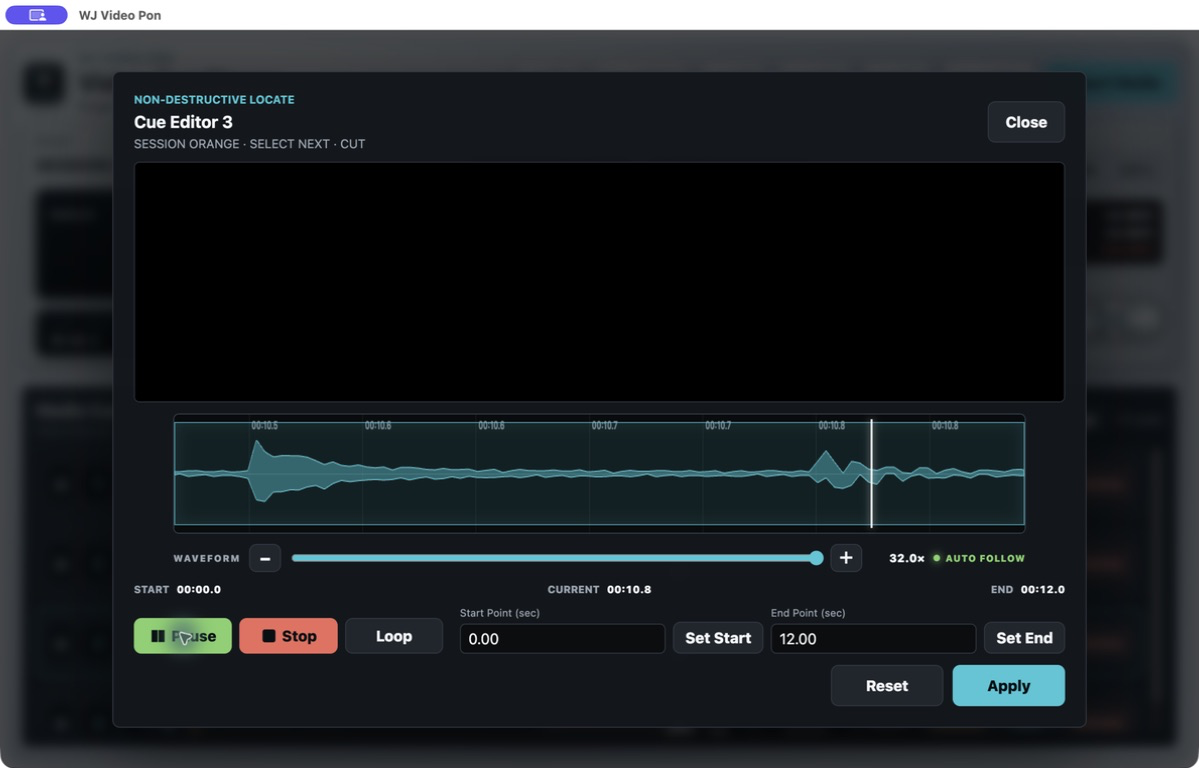
WJ Video Pon Cue Editor with its audio waveform

KEY CONTROLS

Set ranges against the waveform

  • 1× to 32× waveform zoomInspect small sound events before placing a timing point.
  • Start and end pointsSet the playable video range against both the waveform and time display.
  • Automatic followDuring preview playback, the waveform view automatically follows the playhead.
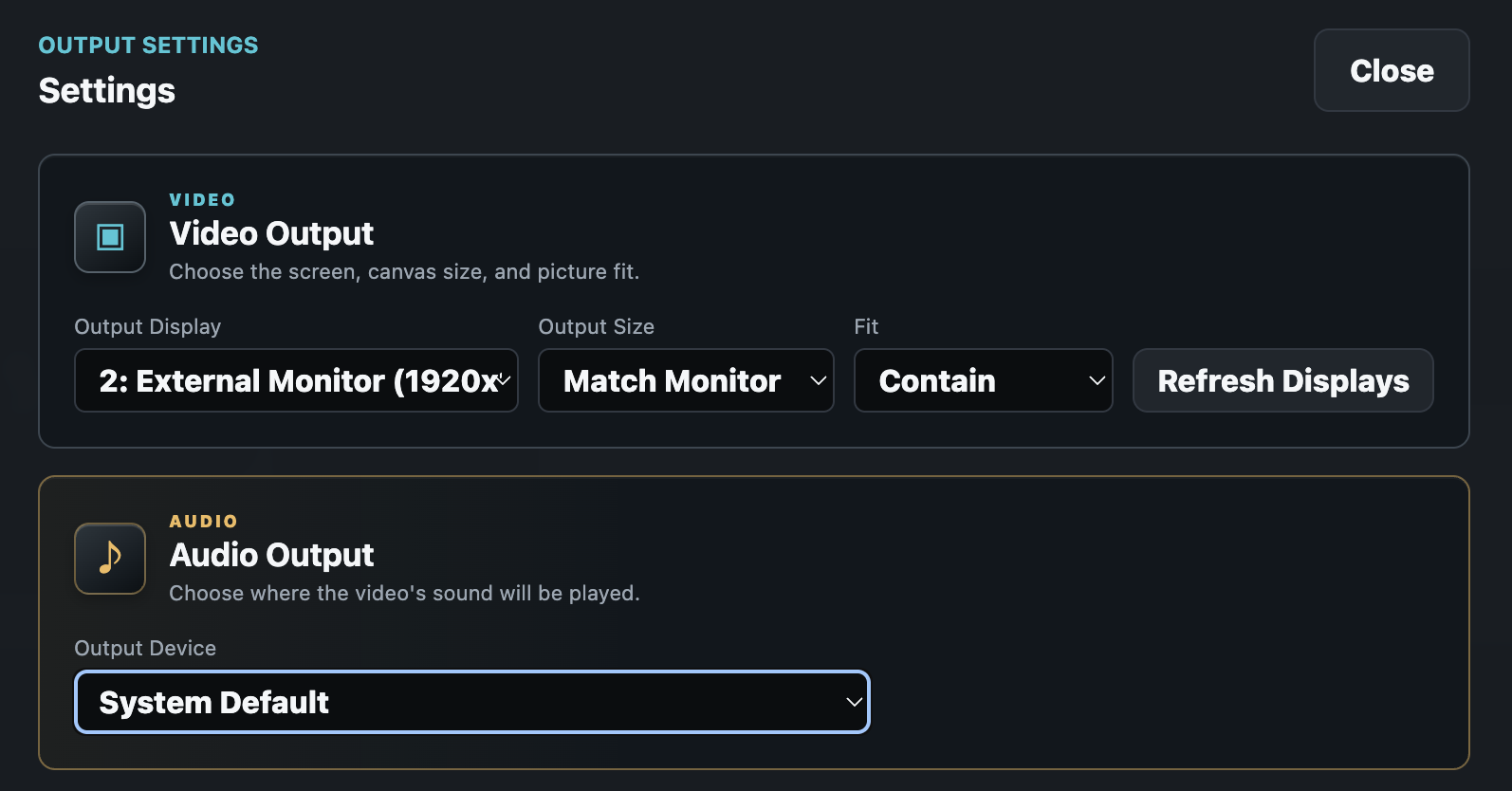
WJ Video Pon video and audio output settings

KEY CONTROLS

Separate video and audio outputs

  • Video OutputSelect the external display that receives the full-screen program picture.
  • Audio OutputChoose the audio device for sound embedded in the video independently.
  • Controls stay on the MacThe external display receives clean picture without the operator interface.
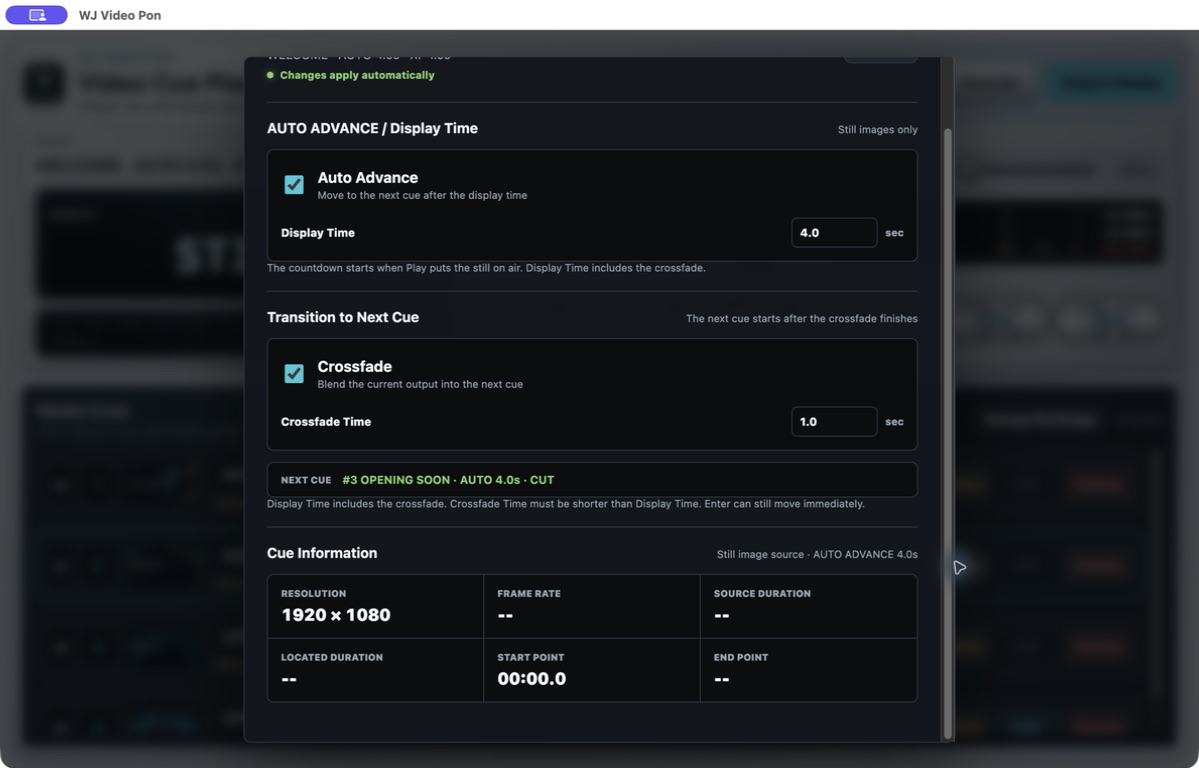
WJ Video Pon still-image AUTO ADVANCE and Display Time settings

KEY CONTROLS

Timed still-image auto advance

  • Display TimeSet the duration and countdown for JPG, JPEG, PNG, or HEIC still-image cues.
  • Transition completes at zeroA CUT changes at zero; a Crossfade starts early enough to finish at zero.
  • Safe timing limitThe Crossfade duration must be shorter than Display Time.

Stills can share a group with videos, and the group returns to its first cue only when its final video uses AUTO PLAY NEXT.

NEXT on the left, PROGRAM on the right

Version 1.2.9 reorders the control-screen monitors so the operator can scan from the prepared next cue to the current live picture from left to right.

Attached while the window moves

PROGRAM is held as a still image attached to the control interface while it moves, then returns to the live view. The actual picture and audio on the external display continue uninterrupted.

License identification independent of the network

The license Mac ID no longer depends on Wi-Fi or the Mac hostname, and existing licenses created with the previous method migrate safely on the same Mac.

Confirm the cue before Delete

Delete now shows the cue number and title before offering Cancel or Delete. It removes only the cue entry, never the original video or image file. The dialog warns that deleting the PROGRAM cue stops output, and deletion is blocked while a transition or automatic CUT involving that cue is in progress.

A/B dual-engine output

The dual-engine output prepares the next video in the background, helping transitions begin smoothly from the first frame.

Clean full-screen external output

Keep the control interface on the operator’s Mac while the selected external display shows only the program video.

Fade audio with video when required

Choose per cue whether audio follows the picture fade, so a visual transition does not have to change the sound level.

Automatic display-sleep prevention

While WJ Video Pon is running, it prevents Mac display sleep to protect the output. The block is released when the app quits, without changing the user’s macOS settings.


STREAM DECK CONTROL / FREE PUBLIC BETA 0.1.0

Keep PROGRAM and NEXT at your fingertips.

The regular WJ Video Pon 1.2.10 application works with the free WJ Video Pon Control plugin. The application is a regular release; only the Stream Deck plugin is a Public Beta.

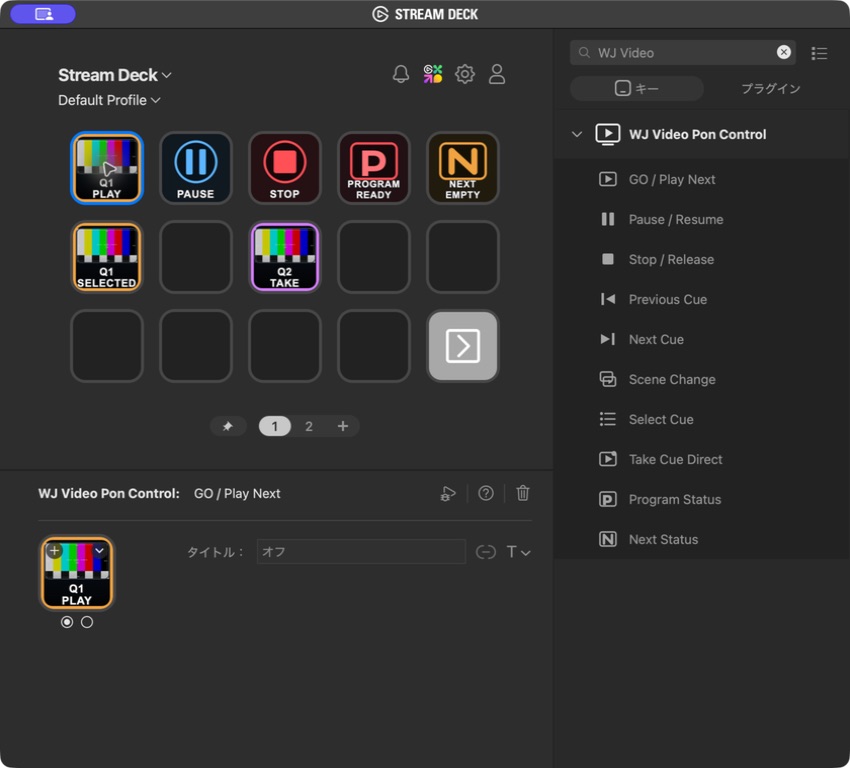
The ten WJ Video Pon Control 0.1.0 Stream Deck actions for GO, pause, stop, scenes, cue selection, PROGRAM, and NEXT status

FIRST-STAGE CONTROLS

Ten actions for video-cue operation

  • TransportGO / Play Next, Pause / Resume, and Stop / Release follow the current output state.
  • Scenes and cuesStep through cues, select a saved cue safely, take a cue directly, or change the standby scene without stopping PROGRAM.
  • PROGRAM and NEXT statusSee the Q number, title, thumbnail, remaining time, PAUSED state, and HOLD state on the keys.

Plugin 0.1.0 is a free Public Beta. The dedicated page explains compatibility, installation, every action, and the difference between safe cue selection and direct take.

VIDEO CUE USE CASES

From opening videos to still-image playout.

Use one video cue playback workflow for show content, logos, holding screens, and repeating exhibition media.

Stage and concert visuals

Arrange opening videos, song visuals, and scene-change material, then trigger each cue with a cut or crossfade.

Ceremony and event videos

Keep speaker videos, presentation clips, logos, and still images together in the running order.

Exhibition loops and holding screens

Repeat booth media or waiting visuals, then move to the next prepared cue when the program changes.

Live-stream and venue displays

Keep operation controls on the Mac and send clean, full-screen picture to a venue screen or streaming workflow.

SYSTEM REQUIREMENTS

Video playout for Apple Silicon Macs.

Use the 3-month Trial with the same Mac, external display, audio device, and media files planned for the live production.

MACApple Silicon
OSmacOS 12 or later
RESOLUTION4K video supported
VIDEOMP4 / MOV / M4V / WEBM / OGV
STILL IMAGEJPG / JPEG / PNG / HEIC
RECOMMENDEDMP4 with H.264 video and AAC audio
OUTPUTExternal display supported
VERSION1.2.10

LICENSE & TRIAL

Test the complete output path before purchasing.

The free Trial lasts for three calendar months from the first Trial activation for each product on each Mac. Updating preserves the original start date and time. The annual base price is JPY 10,000 before tax for one Mac. Purchase or renew from “Purchase / Renew” in the app so the correct Mac ID is linked automatically.

TRIAL3 months free
LICENSE1 Mac / 1 year
ANNUAL BASE PRICEJPY 10,000 before tax